In TotalMD you can tell the program what the allowed amount is for a procedure code, per insurance company.
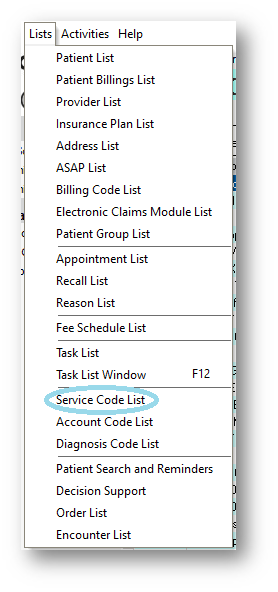
There are several ways to add and alter the allowed amount in TotalMD. The first is by going to Lists> Service Code List:
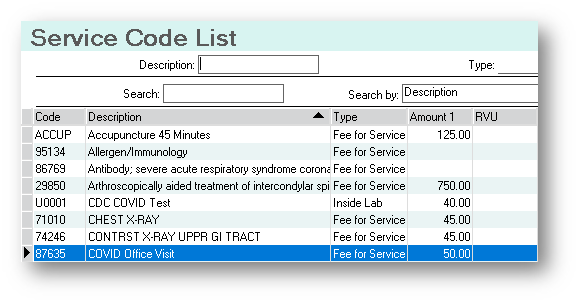
You will then choose your Service Code and double-click it to open up the entry screen:
Once you can see the Service Code Entry screen, you will see three tabs:
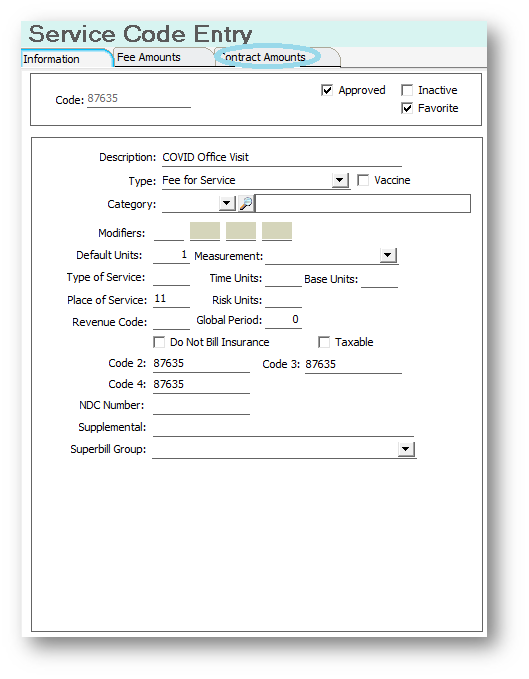
To add or change your allowed amount, you will go to the Contract Amounts tab:
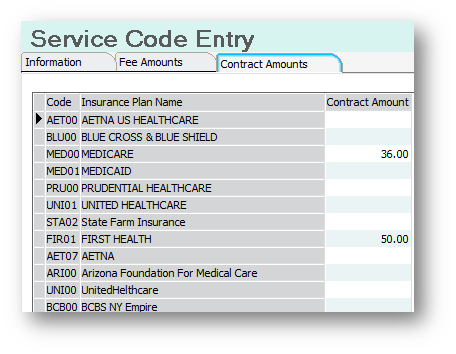
At this time, you can see any amounts that have already been added for this Service Code and enter others or change what you already have in the system.
To change your allowed amounts on the fly, in the ledger, you will choose the Service Code, which will then display the Fee Amount, the Allowed Amount and the Remaining Amount, which will change once a payment has been made:
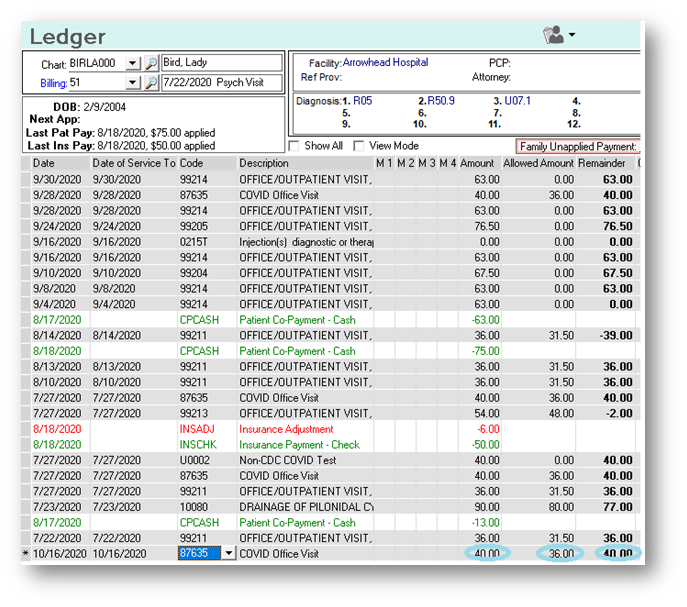
By clicking in the Allowed Amount box, you can, at this time, change your allowed amount:

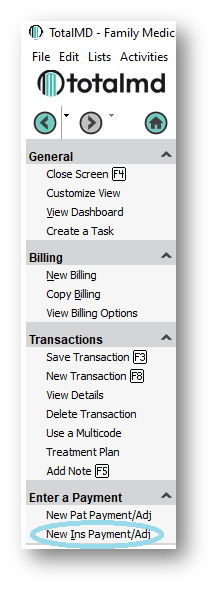
You can also change your allowed amount when you are entering the information from an EOB. By beginning to enter a payment through the ledger:
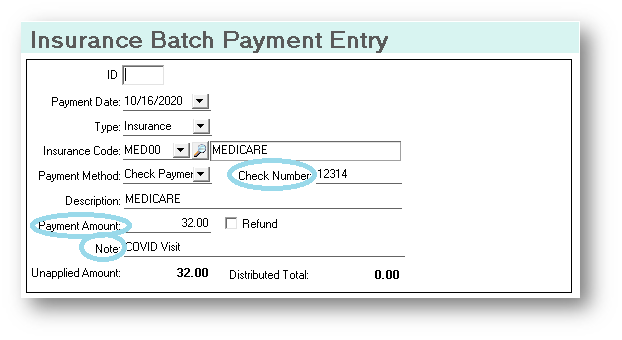
You will add your EOB information first:
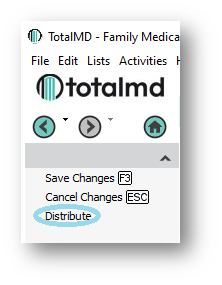
You will then distribute to the left:
Then find the Line of Service that this payment applies to, you will then see the Allowed Amount.

If the Allowed Amount has changed, you can change it at this time:

You can then add your payment and an adjustment code:

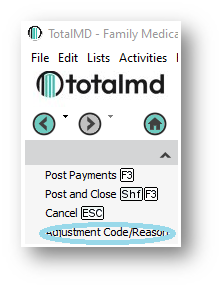
Then you will Post and Close this screen:
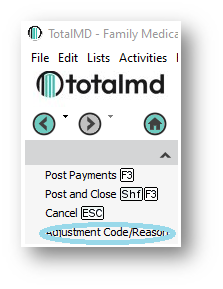
You will then see the Insurance Payment and Adjustment in the ledger:

If you have questions regarding this functionality of TotalMD, please contact our support or training departments at 800-613-7597 Option 2 for Support or Option 3 for Training. If you would like a printable copy of this article, please contact Training at Option 3.