There may come a time in your practice that a patient makes a payment and then their insurance covers that amount as well. The instructions for this are below and a YouTube is here.
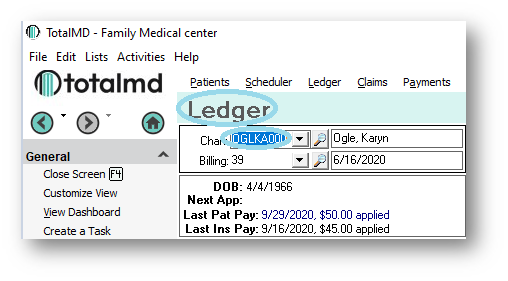
In order to refund the amount that they have already given to your practice, you will first go to the Patient Ledger:
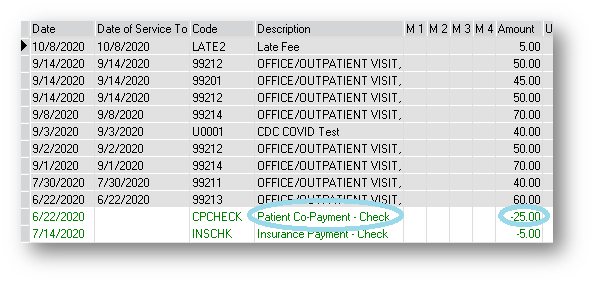
You will then find in the ledger where the patient payment is to ensure that you are correctly refunding money:
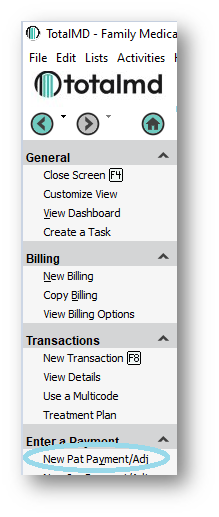
The next step is to go to New Patient Payment/Adjustment:
This will bring up the Patient Payment Entry screen:
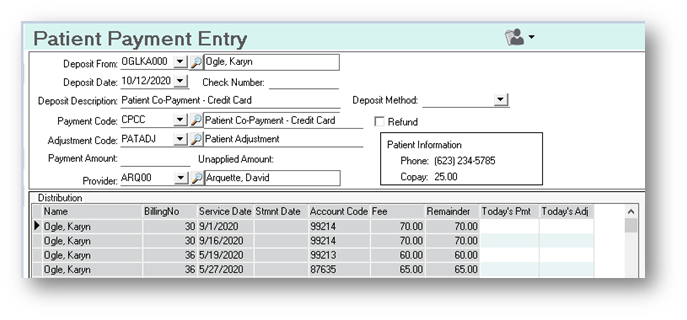
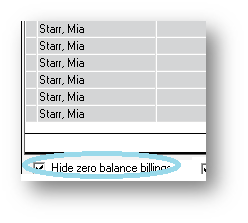
At the bottom left-hand side of this screen you will find a box that you need to uncheck called Hide Zero Balance Billings. By default, it will be checked, so uncheck this box:
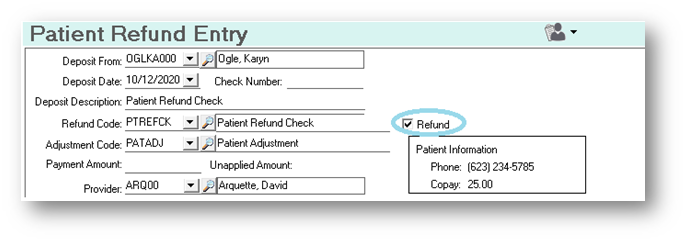
After doing this, you will go to the top and check the Refund box, which change the screen to read Patient Refund Entry:
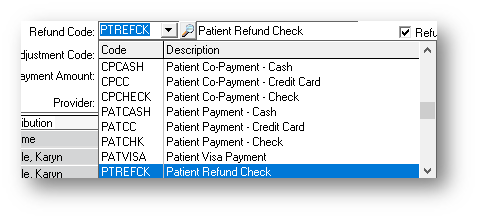
You will have options for the Refund Code:
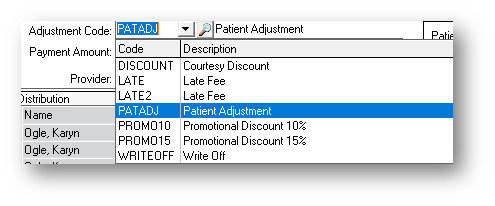
As well as the Adjustment Code:
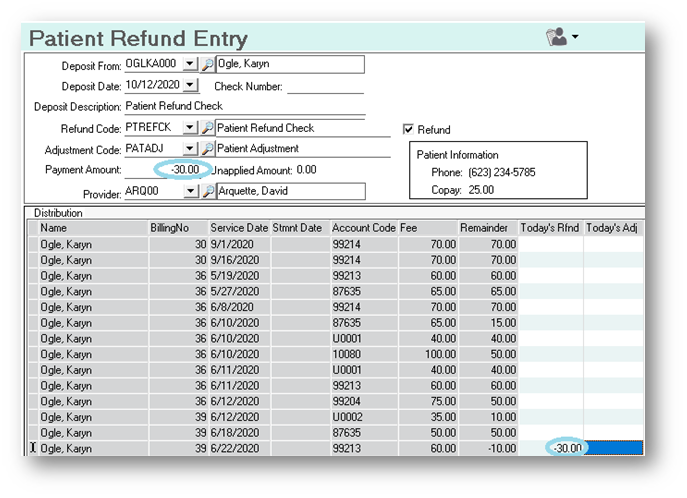
After choosing these pieces of information, you will enter your Refund Amount and then enter that amount in the ledger where it belongs:
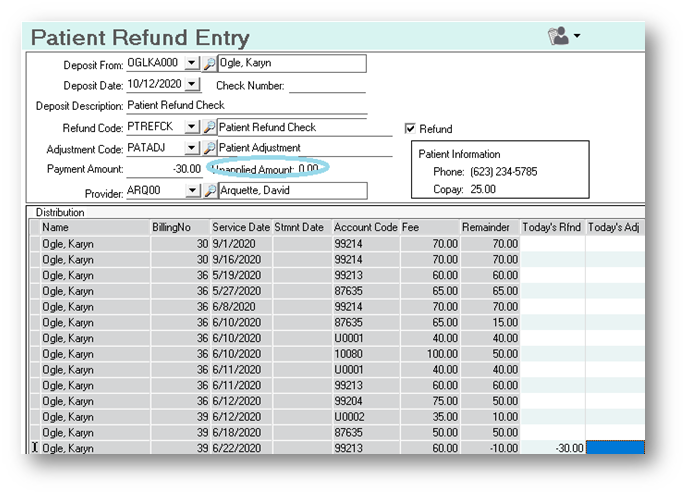
After that, your Unapplied Amount will show $0.
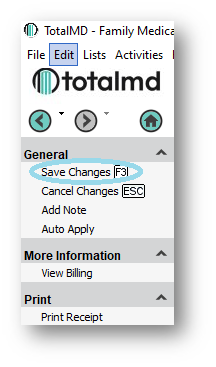
Next you will then Save Changes to the left:
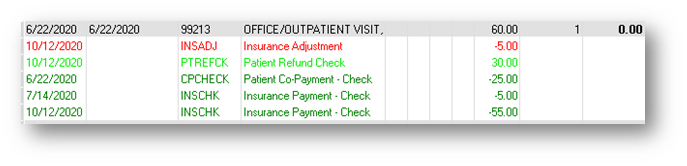
In the Ledger, you will now see a light green line denoting the Patient Refund Check:
If you have questions regarding this functionality of TotalMD, please contact our support or training departments at 800-613-7597 Option 2 for Support or Option 3 for Training. If you would like a printable copy of this article, please contact Training at Option 3.