In TotalMD, you can track various pieces of information by going to the Appointment List in the Lists drop down. Here is a link to the YouTube for this procedure and instructions are below.
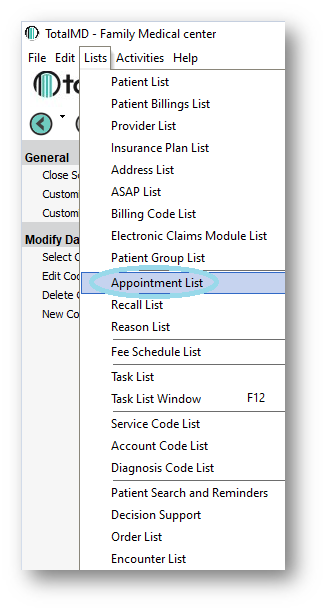
To find the Appointment List, you will do the List drop down and choose Appointment List:
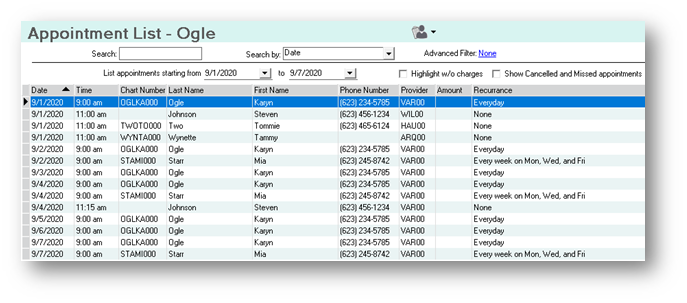
Once you are in the appointment list, you will want to choose a date range for the appointments that you wish to see:

You will then see the list of appointments for that date range. You can sort them by any of the column headings for ease of use:
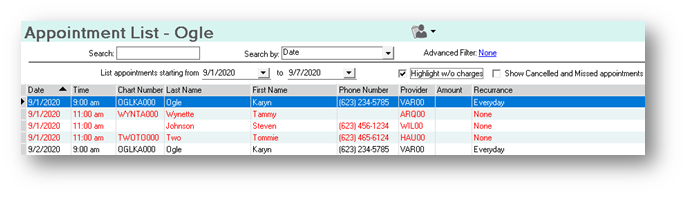
After getting your list on the screen, there are several things that can be done to give you more information about these appointments. The first is to click the Highlight w/o Charges. This will show you all of the appointments that need charges entered into the ledger in red:
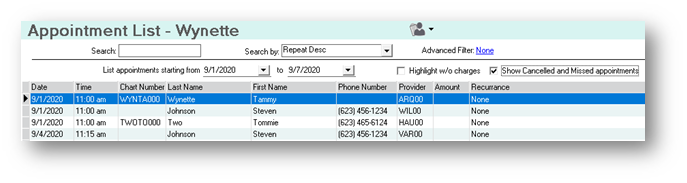
There is also the option to Show Canceled and Missed Appointments by clicking the box:
If you have questions regarding this functionality of TotalMD, please contact our support or training departments at 800-613-7597 Option 2 for Support or Option 3 for Training. If you would like a printable copy of this article, please contact Training at Option 3.