Many times, a practice will want to set up exam rooms, x-ray, acupuncture or other type of rooms on their scheduler, as well as the providers themselves. In TotalMD’s scheduler this can be done with ease. The instructions for this process are below, however, you can access a YouTube video here:
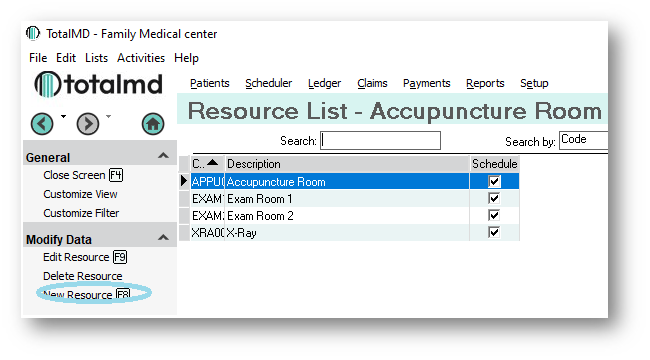
By first going to Setup>Practice Information>Set Up Resources, you will see the Resource List:

To set up a new Resource, you will want to click on New Resource or click F8:
This will bring you into the Resource Entry screen:
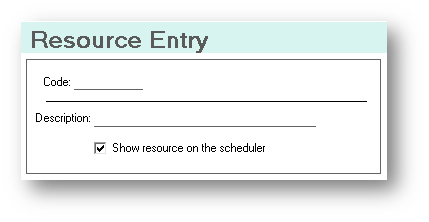
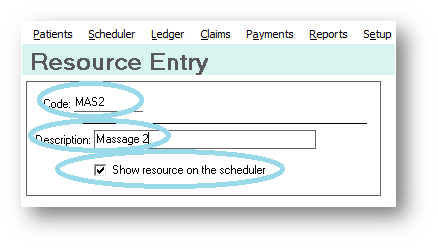
You will then choose the Code, or name, for this Resource, as well as adding a description. In order to get this resource to show up on the scheduler, you will want to make sure that the Show Resource on the Calendar is clicked.
After you have added your Resource, you will need to go to the calendar and add this new Resource to the calendar view in which you wish to see it.
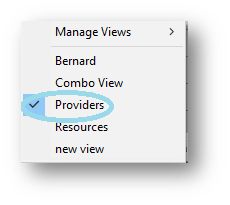
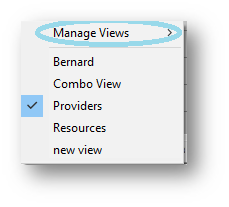
By choosing the View in which you wish to add the resource, you will get the Manage Views option:
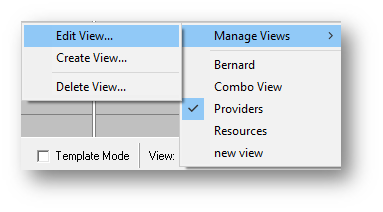
You will then have the option to Edit, Create or Delete View. You will need to decide if you are creating a new view or simply adding this resource to an existing view.
In Edit View, you are able to add your new resource to an existing schedule:
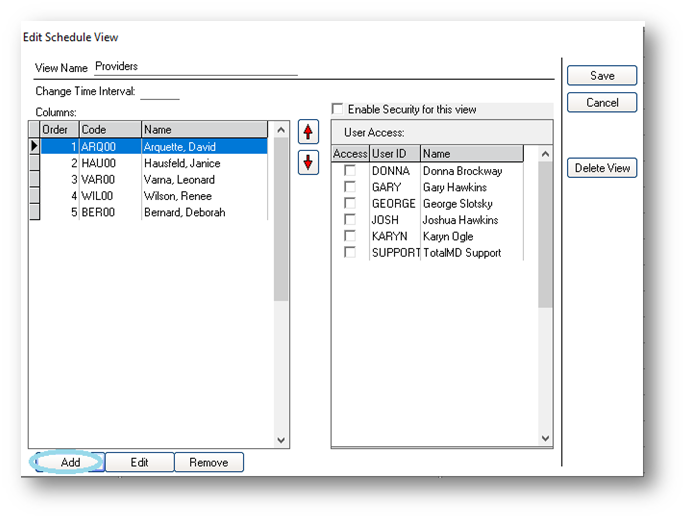
You will click Add and change the radio button to Resource:
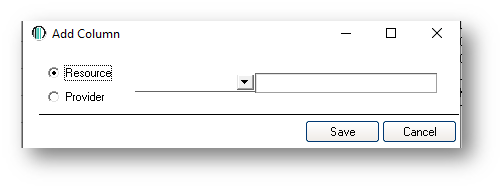
You will then do the drop down menu and search for your new resource:
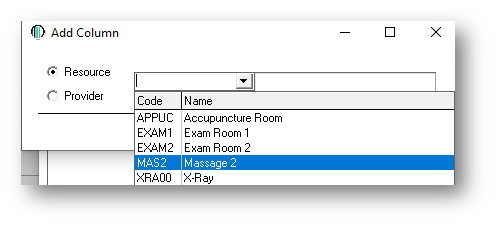
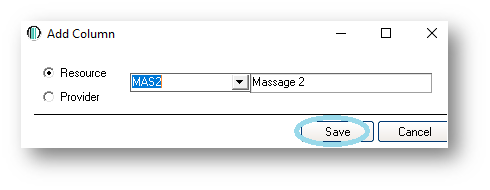
After adding the New Resource name, you will click Save:
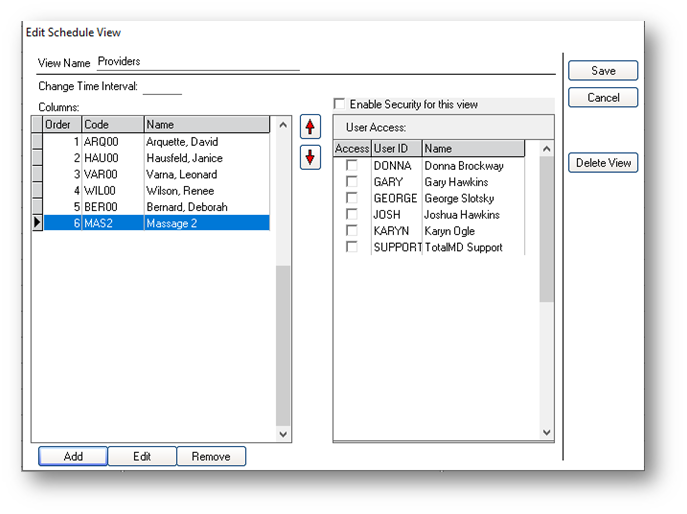
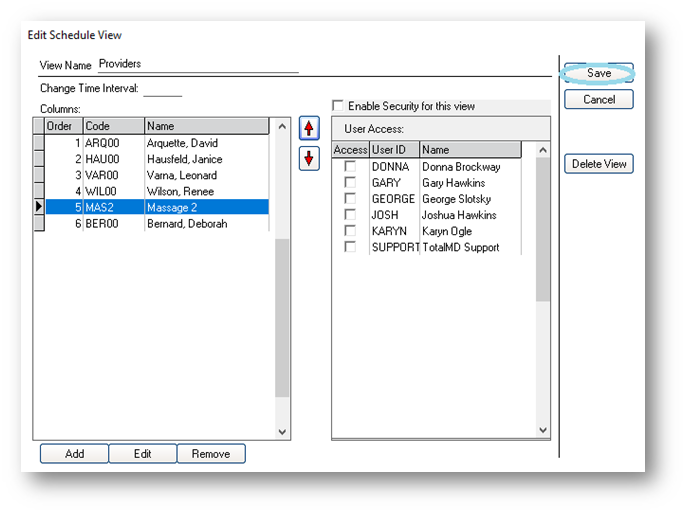
The new Resource will now be in your list:
If you wish to reorder your columns in the Scheduler, simply highlight the Resource or Provider you wish to move and use the Up and Down arrows to relocate it:
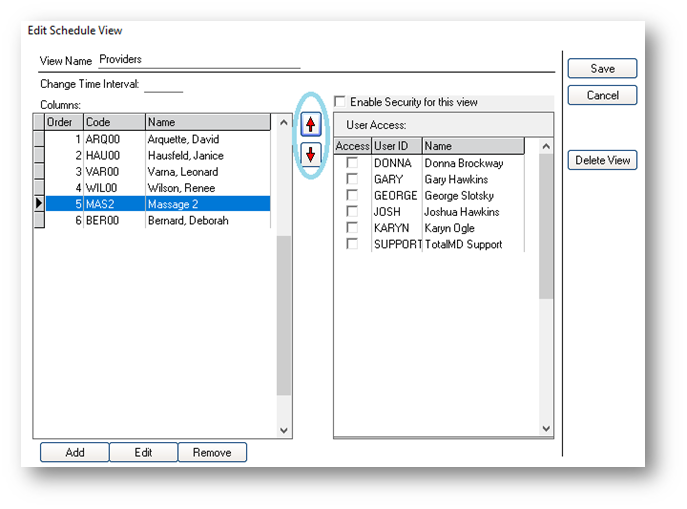
Once you are satisfied with the changes to the view, click the Save key:
Your Scheduler will now reflect the new Resource:

If you have questions regarding this functionality of TotalMD, please contact our support or training departments at 800-613-7597 Option 2 for Support or Option 3 for Training. If you would like a printable copy of this article, please contact Training at Option 3.