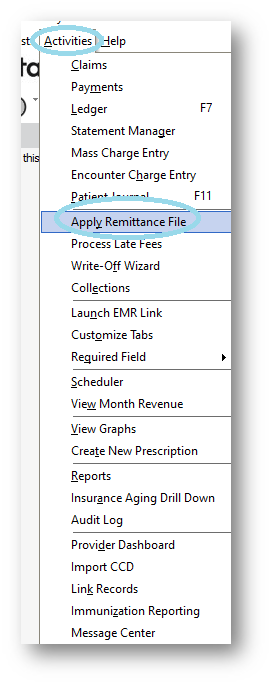
Within TotalMD, if you are receiving Electronic Remittance Advices (ERAs) rather than paper Explanation of Benefits (EOBs), you can bring these documents in from any clearinghouse and auto-post them. Once you have received an ERA from a clearinghouse that is not TotalMDs partner e-Solutions, you will want to make sure that it is downloaded to your computer. Using e-Solutions, you can skip this step. After your ERA is in position to be uploaded into TotalMD, you will to Activities>Apply Remittance File:
Then the box that will allow you to choose your file will pop up:
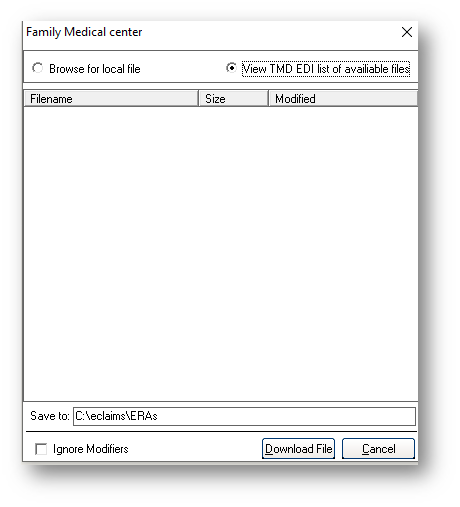
If you are using e-Solutions, the ERAs will be listed in this box. If you are using another clearinghouse, you will click the Browse for Local File bubble and see this:
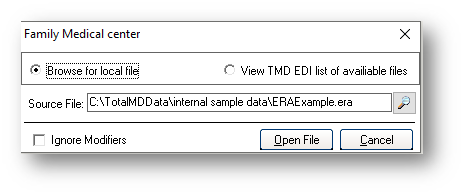
After mapping the Source File the first time, the system will remember your destination and allow you to choose a file to upload. After opening the file to upload it, you will see a breakdown of the ERA:
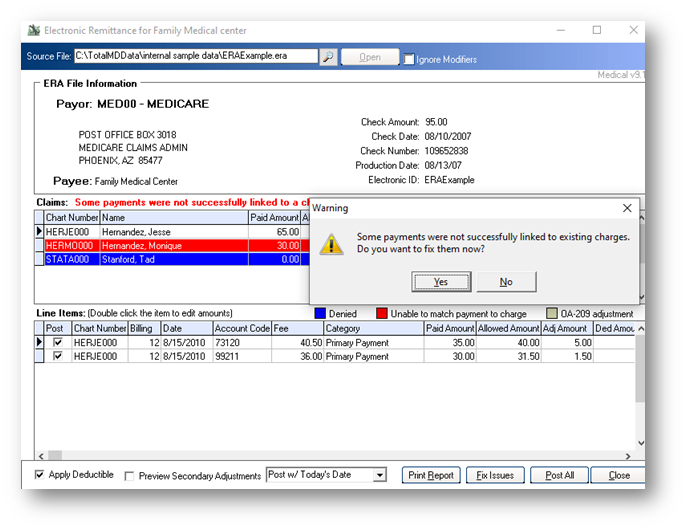
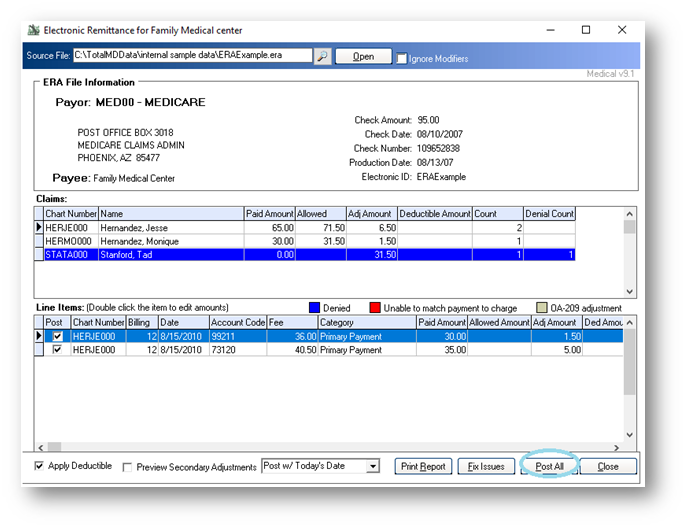
In this example, note that there are white, red and blue lines. The white lines exactly matched an entry in TotalMD. The red one does not match an entry in TotalMD and the blue line indicates a claim denial. You will see the box that will allow you to see the charges for the patient that does not exactly match a charge:
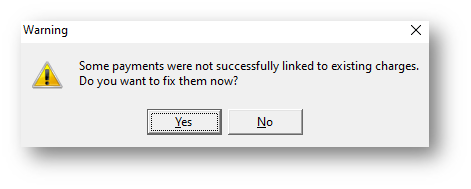
By clicking yes, you will see the charges that do not match:
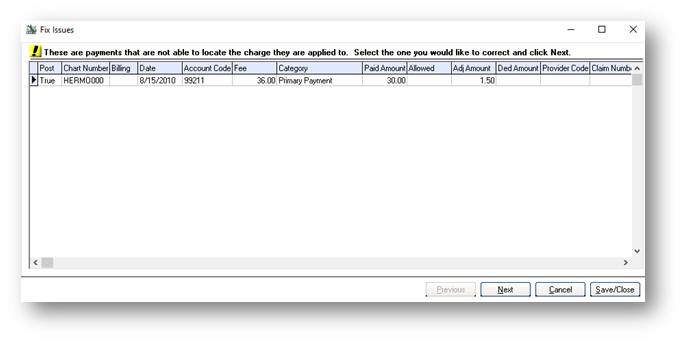
When you click next, you will see the charges in the patient ledger:
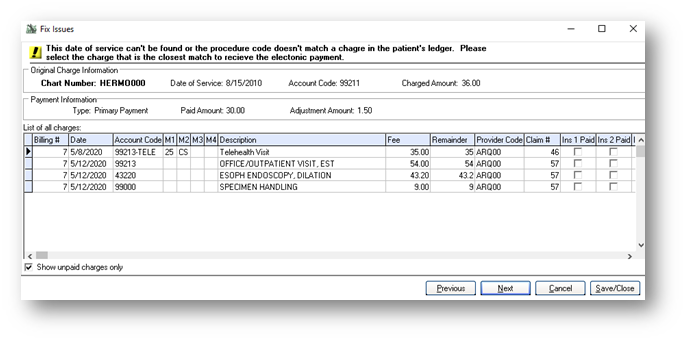
Note the message at the top – it will tell you why the charge does not match. At that time, you can choose a charge in the ledger with which to accept the payment. When you choose a charge to apply the payment to, the line will then show white, or ready to post.
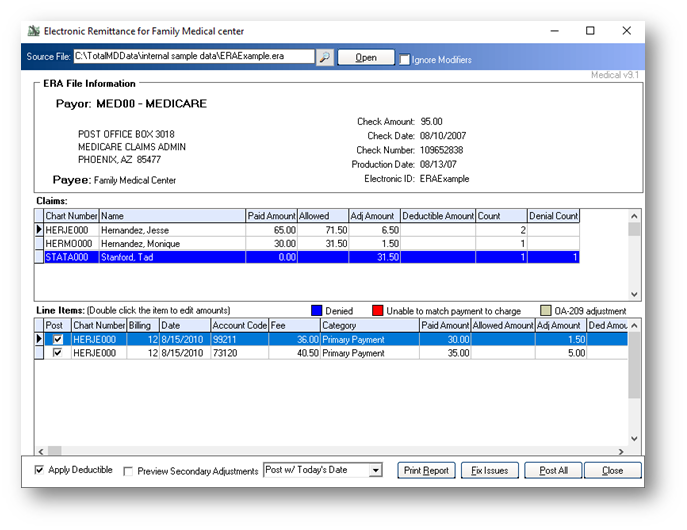
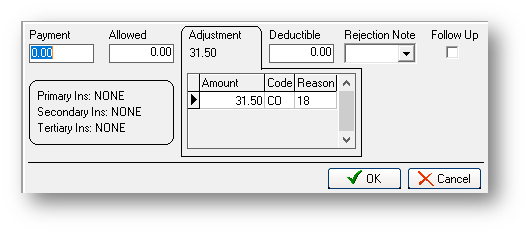
You can double-click on the blue (denial) line to see why it denied:
Once you are satisfied that all of your charges will post correctly, you will click Post All:
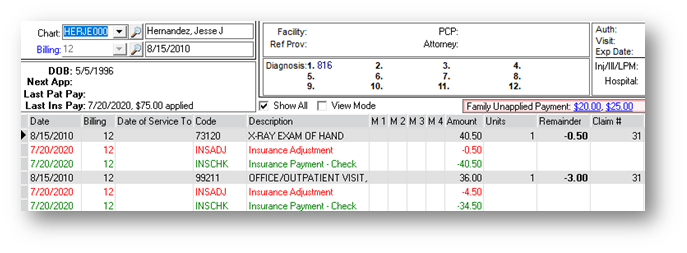
Once you go to the ledger, you will see the adjustments that you just made:
If you have questions regarding this functionality of TotalMD, please contact our support or training departments at 800-613-7597 Option 2 for Support or Option 3 for Training. If you would like a printable copy of this article, please contact Training at Option 3.