In TotalMD’s ledger, there are different ways to see your patient’s remaining balances.
First, you will go to the ledger and find your patient that you are checking on their balances:
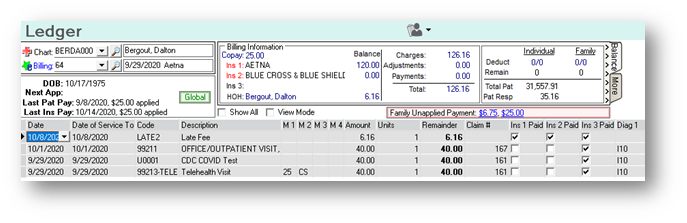
At the top right-hand corner of the screen, there are two tabs, Balance and More. You will want to have the Balance tab chosen:
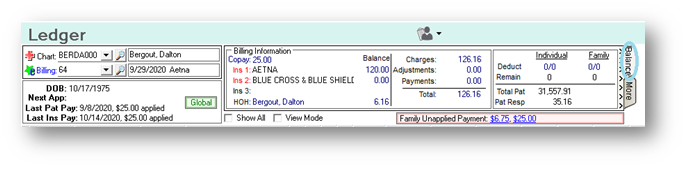
You will then look in the right-hand box to see the Total Patient and Patient Responsibility amounts:
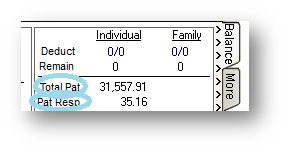
The top amount, or Total Patient, reflects all charges in all billings for this patient that have been billed to the insurance and remain unpaid. The Patient Responsibility indicates what the patient actually owes for all billings. In the box to the left of this box, you will see another Total:
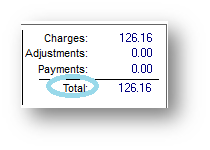
This total indicates the Total for the billing that is being shown at the moment. You can change the billing information in the left-hand box by doing the drop down menu and making a choice:
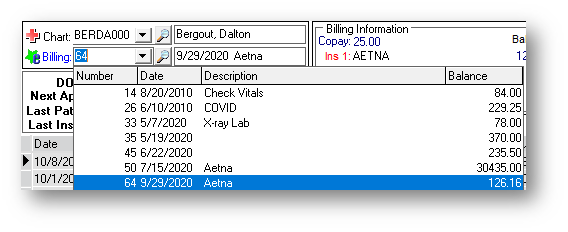
Below you can see that the billing number was changed and the information in the second box from the right has changed to reflect that billing’s totals:
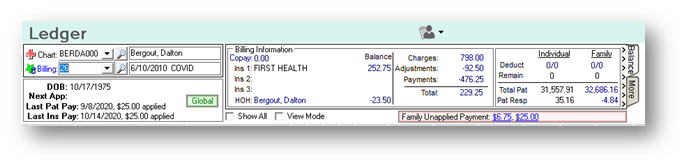
Of course, you can also see your totals in the ledger as well.
If you have questions regarding this functionality of TotalMD, please contact our support or training departments at 800-613-7597 Option 2 for Support or Option 3 for Training. If you would like a printable copy of this article, please contact Training at Option 3.