Within TotalMD, you have the option to send messages within your office without getting out of the program. Below are instructions and here is a link to the YouTube video with the same information.
To access the messaging in TotalMD, you will go to the bubble in the lower right-hand corner of any screen within TotalMD:
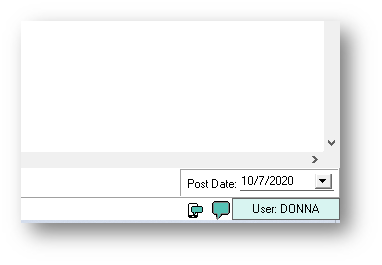
By clicking on the bubble, you will see the Office Messages pop up appear:
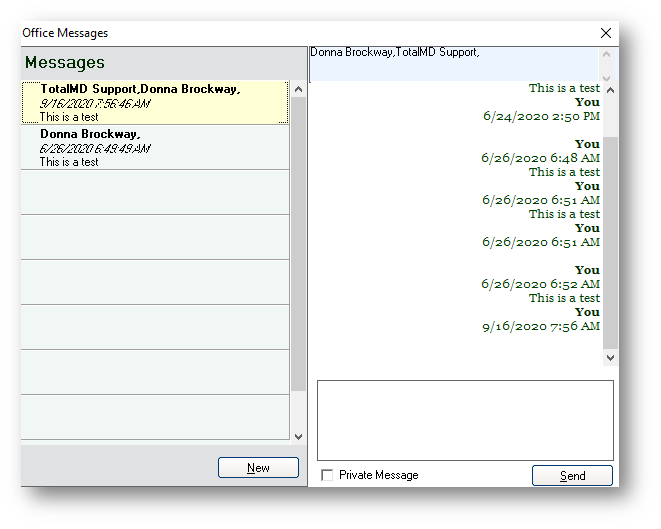
When you click the New key, you will see Send Office Note, where you can choose the recipients of your message:
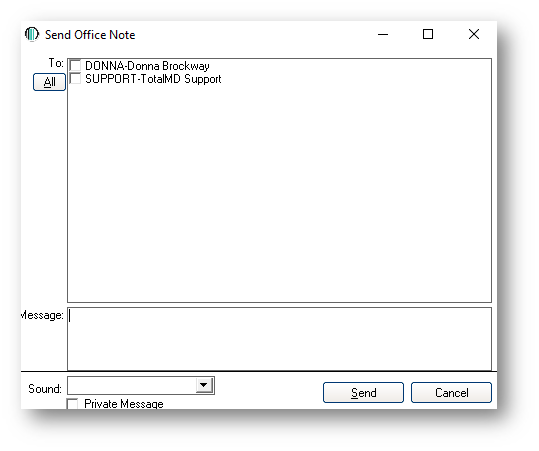
Once you have selected the recipients of the message, you can type the message into the message box and then send it. The entire message will pop up at the bottom of the recipient’s screen unless you click the Private Message box. If you are sending private information, clicking this will cause a message to pop up at the bottom informing the recipient they have a message.
If you have questions regarding this functionality of TotalMD, please contact our support or training departments at 800-613-7597 Option 2 for Support or Option 3 for Training. If you would like a printable copy of this article, please contact Training at Option 3.