When you are accessing a report, there are times that you add parameters that, once you see the report, you wish to change. You can always close out of the report and start again, but it is not necessary to do this. Here is a link to a YouTube describing this process and the instructions are below.
Once you choose a report:
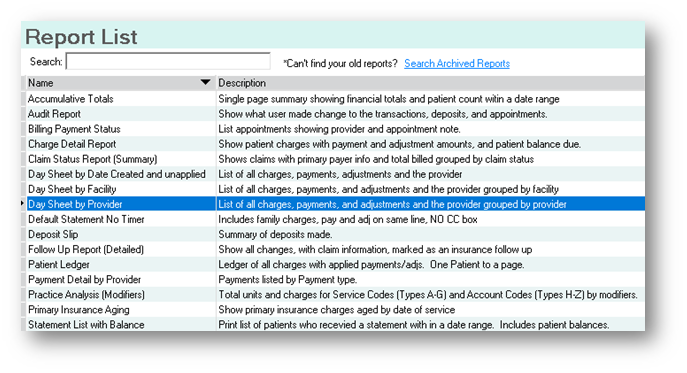
You will double-click it to get to the parameters screen:
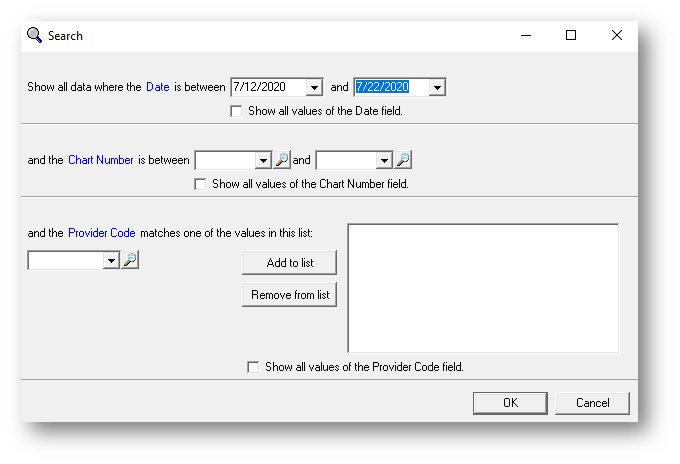
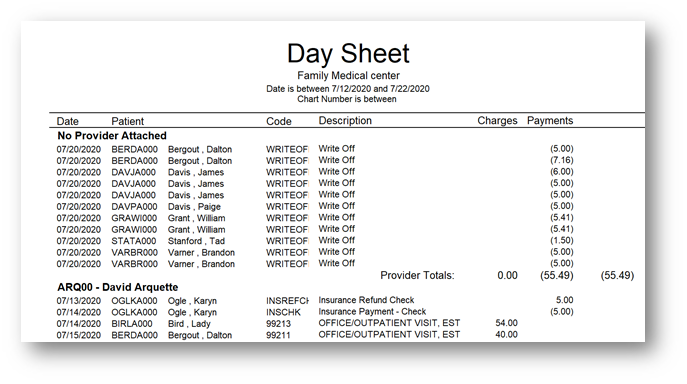
You will then fill in your parameters and click OK, which will bring you the report:
At that time, you may wish to revise the parameters you chose. You can do this by click the spyglass at the upper left-hand corner of the screen
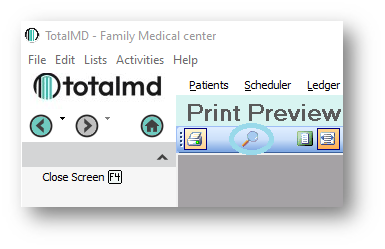
This will bring back the parameter popup: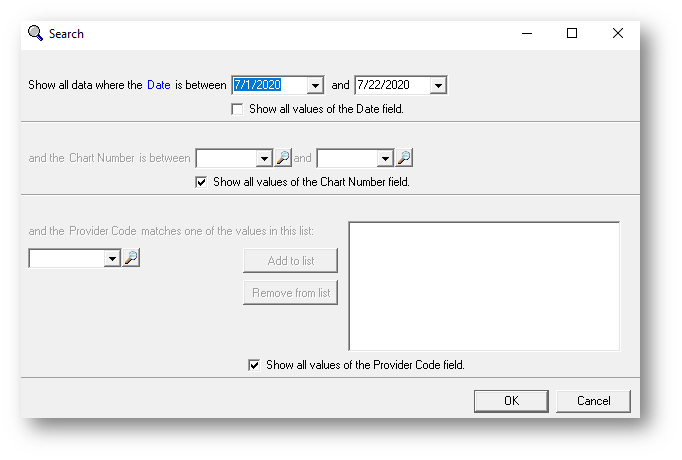
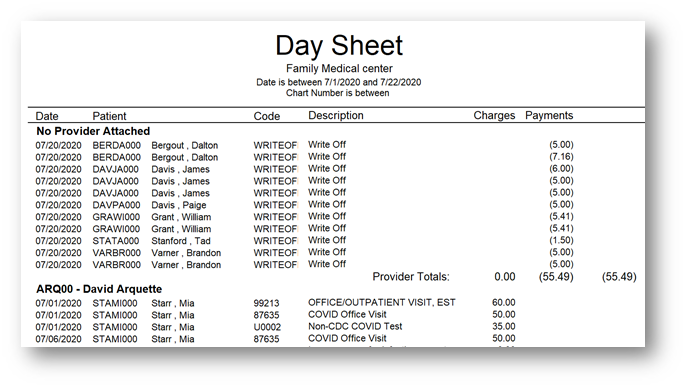
At which point, you can change, add or delete parameters from the box and then click OK. You will then see the new report:
If you have questions regarding this functionality of TotalMD, please contact our support or training departments at 800-613-7597 Option 2 for Support or Option 3 for Training. If you would like a printable copy of this article, please contact Training at Option 3.