There are a couple of ways to create claims in TotalMD. Below are the instructions to do so and here is a link to a YouTube video showing this process as well.
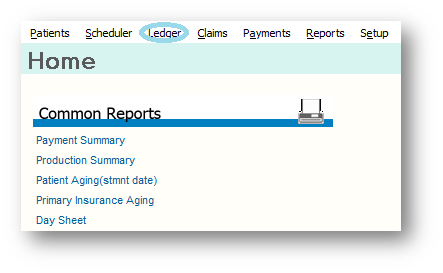
The first thing is to go to the Ledger:
You will then choose the patient for which you wish to enter charges: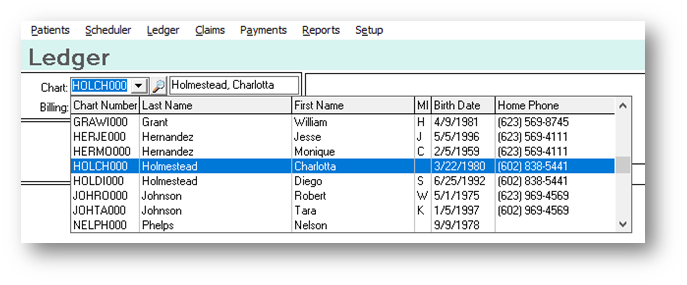
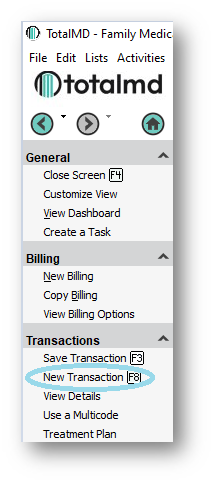
You will then Add Transaction to the left:
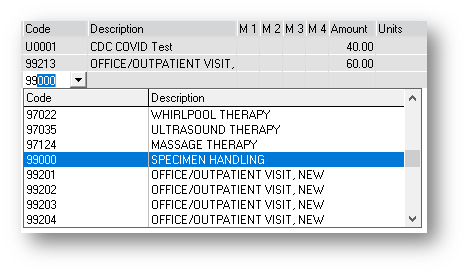
Then choose your Charge Code:
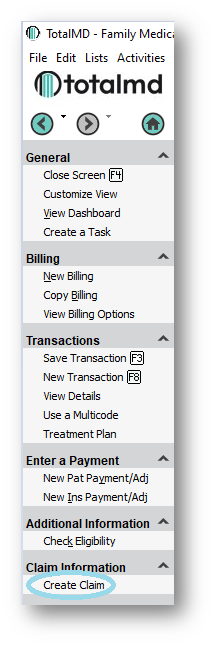
Once you have entered all of your charges for this patient, you can go to the left and Create Claim:
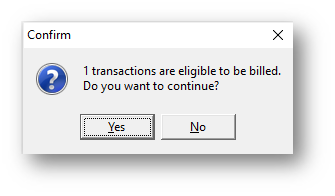
The system will then ask you to confirm the number of transactions you have to enter on the claim:
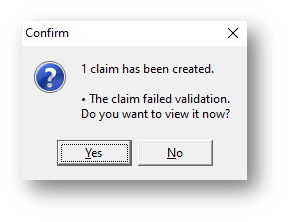
After clicking Yes, the system will tell you if the claim has passed validation or not and allow you to view it if you would like:
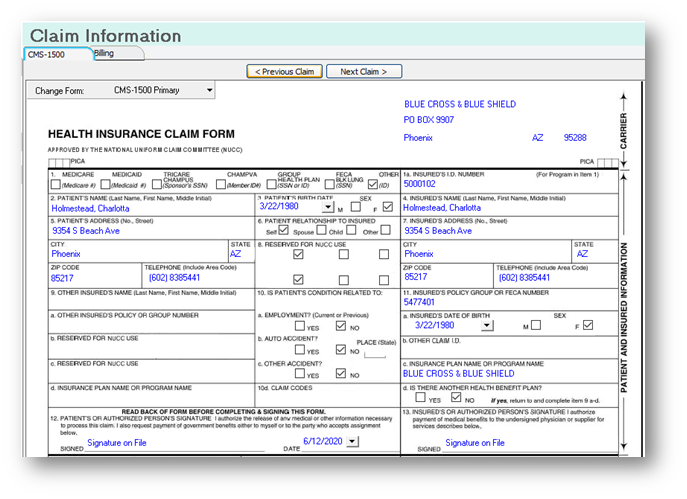
By clicking Yes, you will see the image of the CMS1500 form:
By clicking on the Billing tab at the top left, you will see why the claim failed validation:
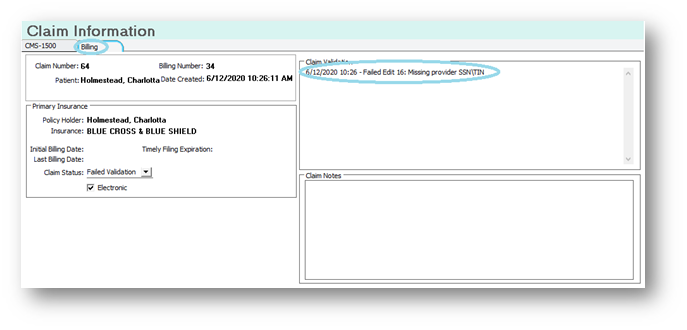
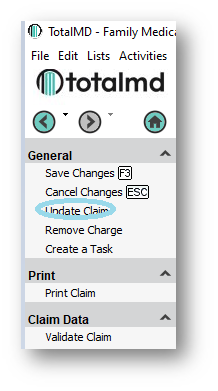
The great thing about this interactive form is that you can make small changes directly on the form. However, the changes do not go backward in TotalMD, so if it is a change that will impact future claims, you should probably go back into TotalMD and make the change. Once the change has been made in TotalMD, come back into the interactive form and Update Claim:
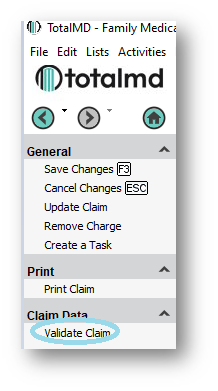
The if you choose to make the change in the interactive form, you will want to validate and NOT update the form. Either way, the next step is to Validate Claim again.
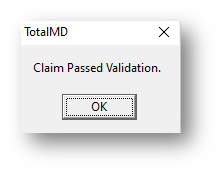
Once all corrections are made you will get this message:
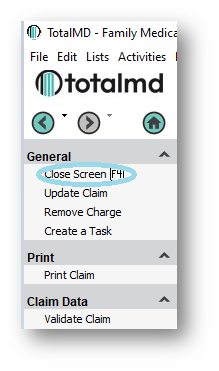
You will then Close Screen:
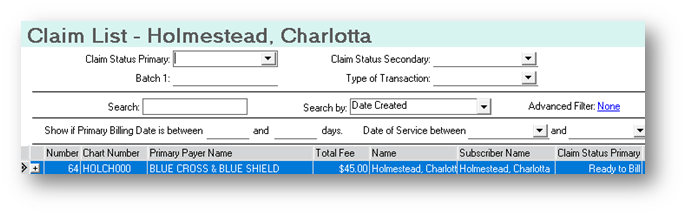
Your claim will now be Ready to Bill:
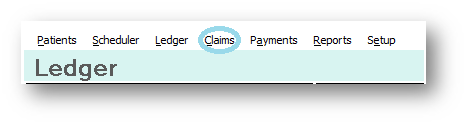
The other way to create claims is to enter all of your charges into TotalMD from the ledger and then go to the Claims tab:
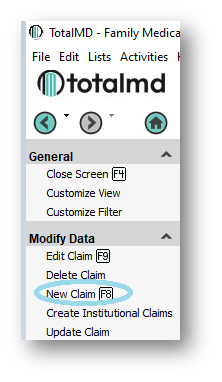
Then go to New Claim on the left:
You will receive a warning about the number of transactions you have pending:
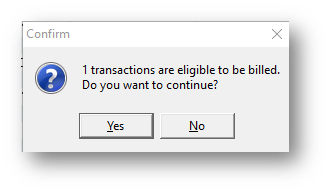
After clicking yes, if there are any errors, you will receive this message:
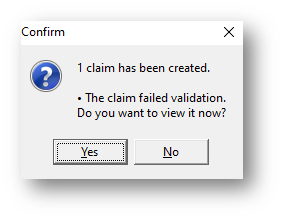
You can then go to the claim and make the changes on the interactive form. If there are no validation failures you will see this message:
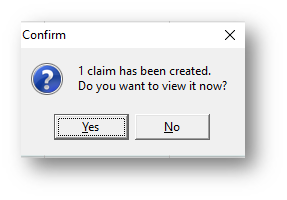
You may then view the claim(s) or just click No, which will then cause the new claim(s) to show at the top of the Claim List:

You can then either print or submit the claim(s) electronically.
If you have questions regarding this functionality of TotalMD, please contact our support or training departments at 800-613-7597 Option 2 for Support or Option 3 for Training. If you would like a printable copy of this article, please contact Training at Option 3.