Within TotalMD’s software is the ability to assign tasks between users. This works in both the Practice Management and Electronic Health Record systems. The Practice Management piece of this article is the same for users both with and without the EHR software.
Tasks in the Appointment Entry Screen
When entering patient information into the Scheduler, you can assign a task from the Appointment Entry screen after you open a patient appointment, both for the first time and later on in the process.
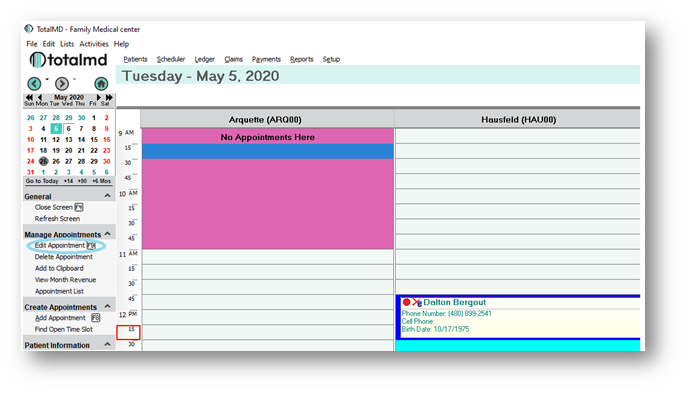
By double-clicking on the appointment, choosing to Edit Appointment or clicking the F9 key:
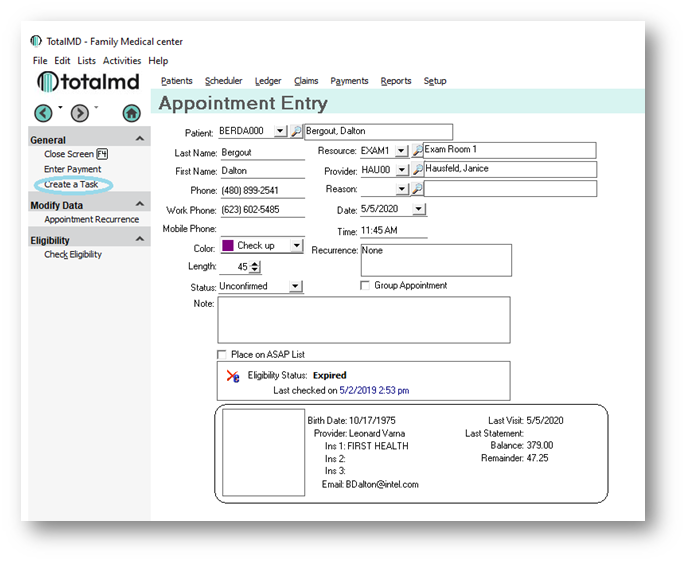
You will be taken to the Appointment Entry screen. You will then choose Create a Task to the left:
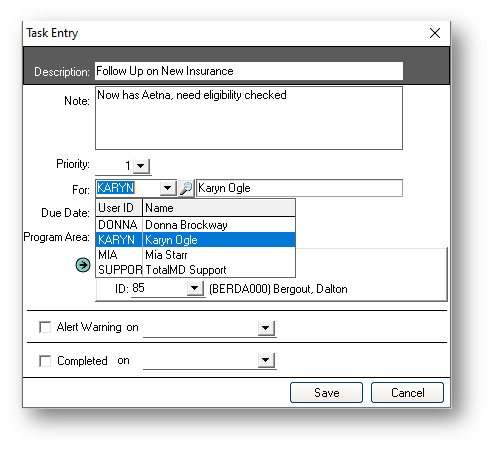
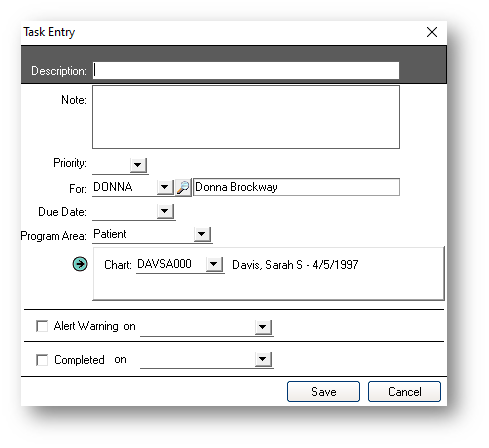
You will then add a description of the Task, a Priority and choose an individual to assign to whom the task is assigned:
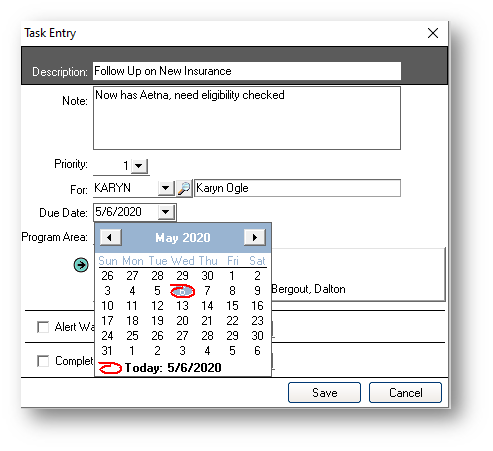
You will then assign a Due Date for the Task:
You will then choose the area of the program that the Task belongs to:
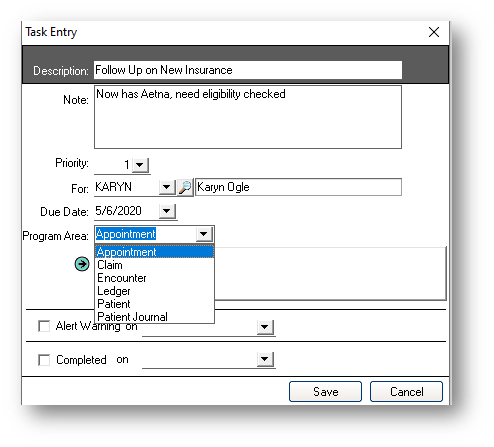
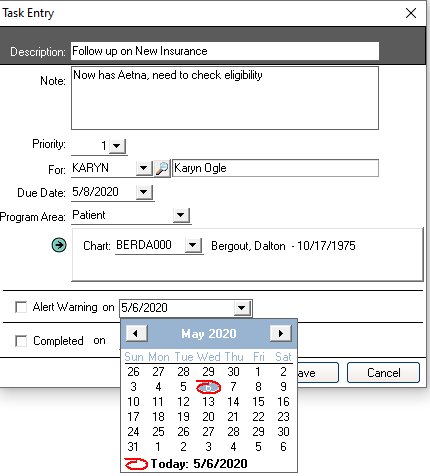
You will then make sure the patient shows up correctly and add an Alert Warning date for the Task and click the Alert Warning box:
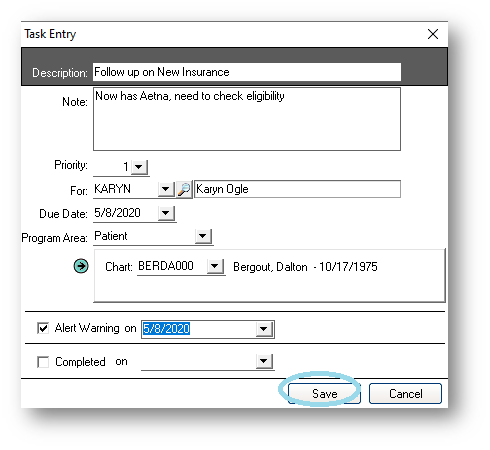
You will then Save the Task:
Tasks in the Patient Entry Screen
From the Patient List, choose a patient by double-clicking the patient, choosing Edit Patient at the left or clicking F9:
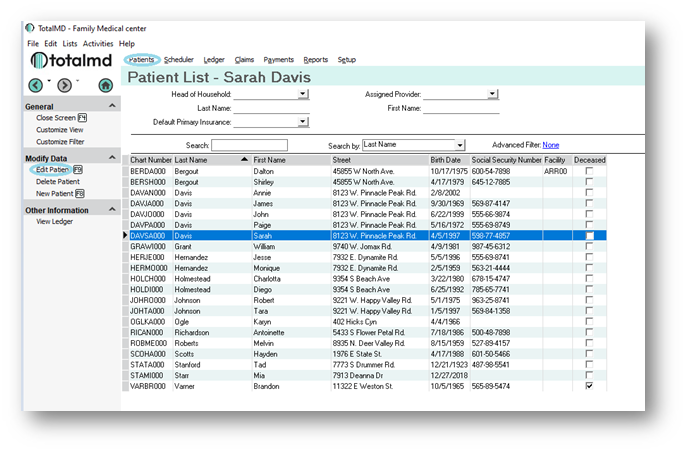
You will then Create a Task:
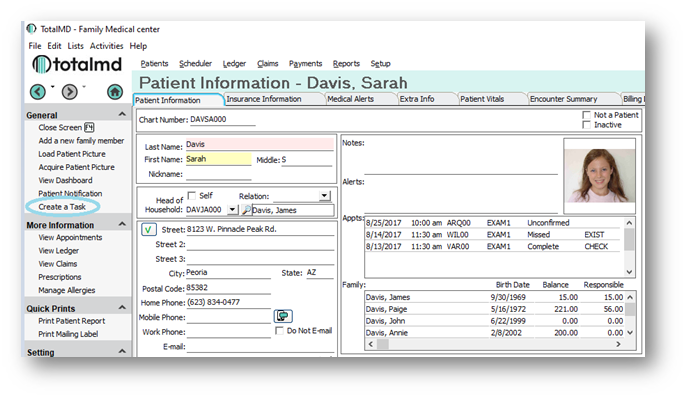
You will see the same screens as before:
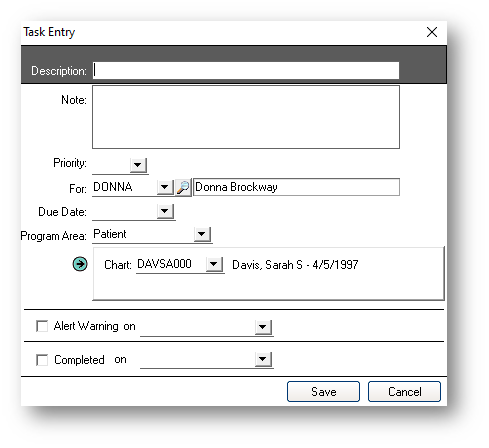
Creating Tasks from the Ledger
From the Ledger screen, you will choose Create a Task to the left of the screen:
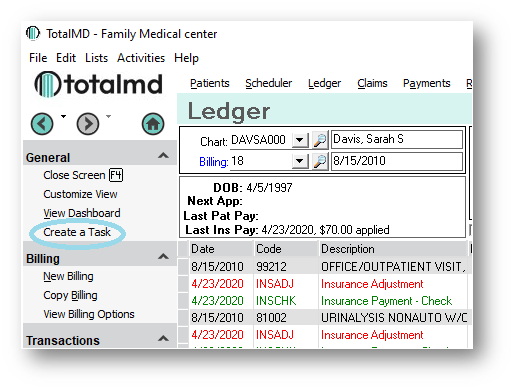
You will then see the same screen:
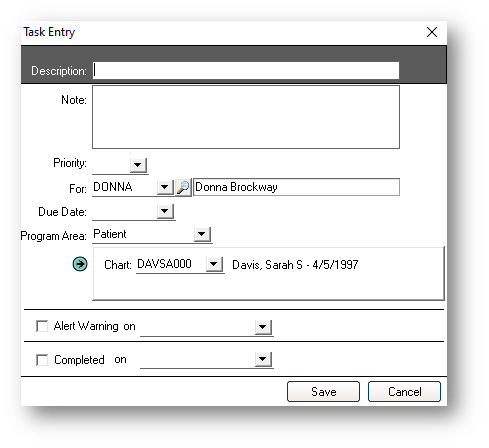
Creating Tasks from the Encounter in the EHR
From the Encounter screen, choose Create a Task from the left:
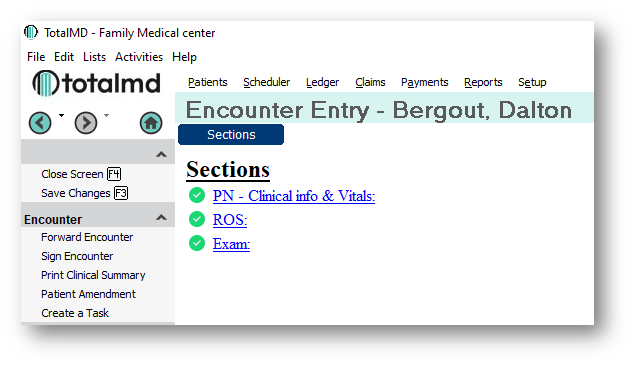
You will then see the same screens:
Looking at the Tasl List
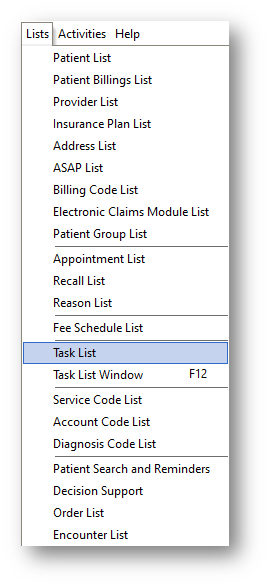
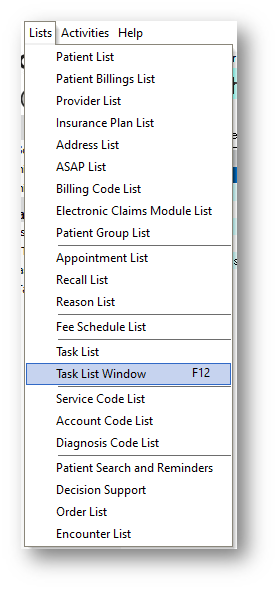
Go to Lists and Task List:
You will then see a complete list of tasks:
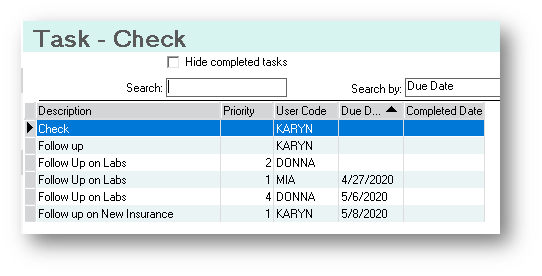
Any tasks can be edited from this screen by double-clicking on them or clicking Edit Task to the left:
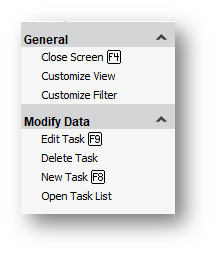
You can also add or delete a Task from this list. By clicking on Open Task List, it will show you the task list for the person who is logged into the account.
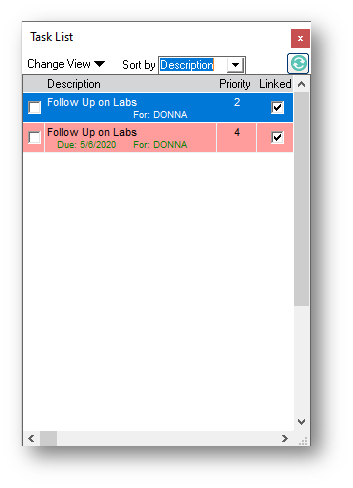
By going to Lists>Task List Windows, you will also see your personal task list as well:
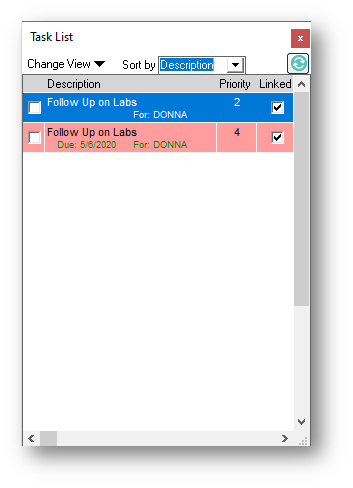
Double-clicking on any of the Tasks will open up the Task Entry window again:
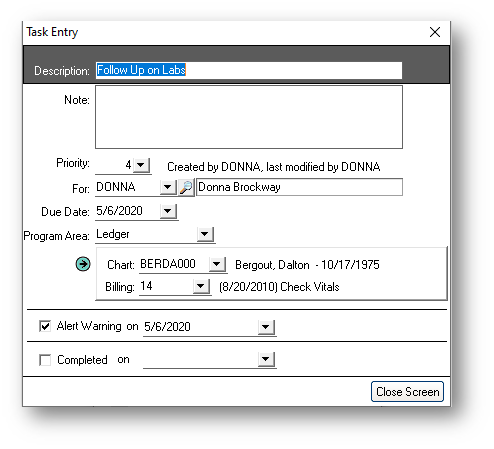
The person assigned the Task can then complete the task.
If you have questions regarding this functionality of TotalMD, please contact our support or training departments at 800-613-7597 Option 2 for Support or Option 3 for Training. If you would like a printable copy of this article, please contact Training at Option 3.