If you have an appointment on your Scheduler, you will see various symbols that tell you what the patient status is. For a new patient that has not yet been set up as a patient, you will see two symbols:
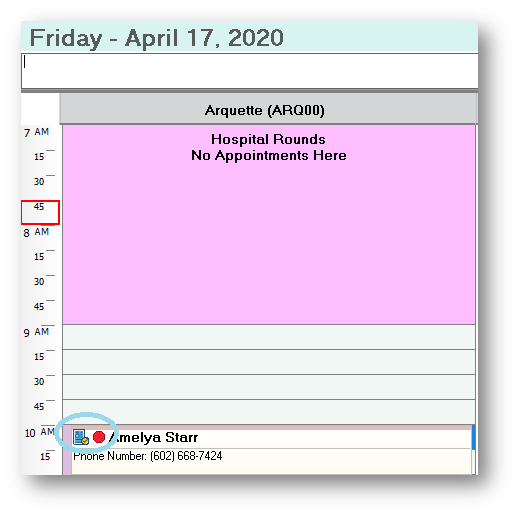
The symbol means that this is a new patient and paperwork is due. The symbol means that the patient is unconfirmed. By left clicking on the patient, it will haloed in blue. You can then right click for a drop down menu that gives you the choice of Change Status, which gives you another drop down with the choices to change the status of this patient.
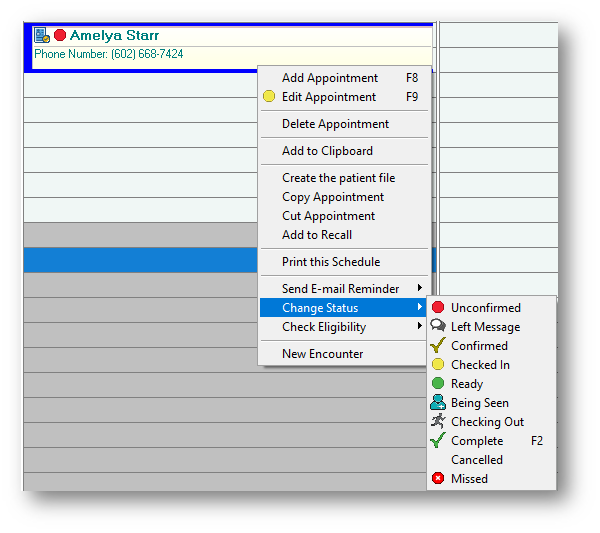
Each of the symbols have an explanation beside them.
- The first choice is Unconfirmed, which is the default when a new appointment is made
- The second one can be chosen if a message was left for the patient attempting to confirm the appointment
- The third one is used if the patient confirms that they will be attending the appointment
- Then, once the patient has arrived and been checked in but may be filling out additional paperwork, you can change it to Checked In
- Once the patient is ready to be taken back to the provider, the status changes to Ready
- When the patient is roomed, the status changes to Being Seen
- When the provider is finished with the patient, the status can be changed to Checking Out
- Once the check out process is finished, the status changes to Complete
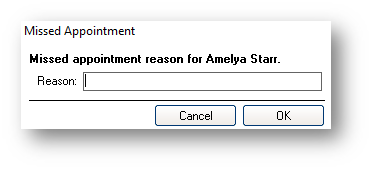
The last two choices will remove the appointment from the calendar entirely. They do give you the option to put in a comment as to why the patient Canceled the appointment:
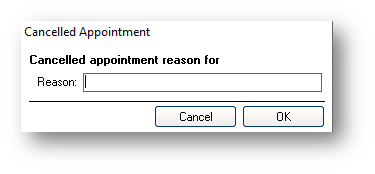
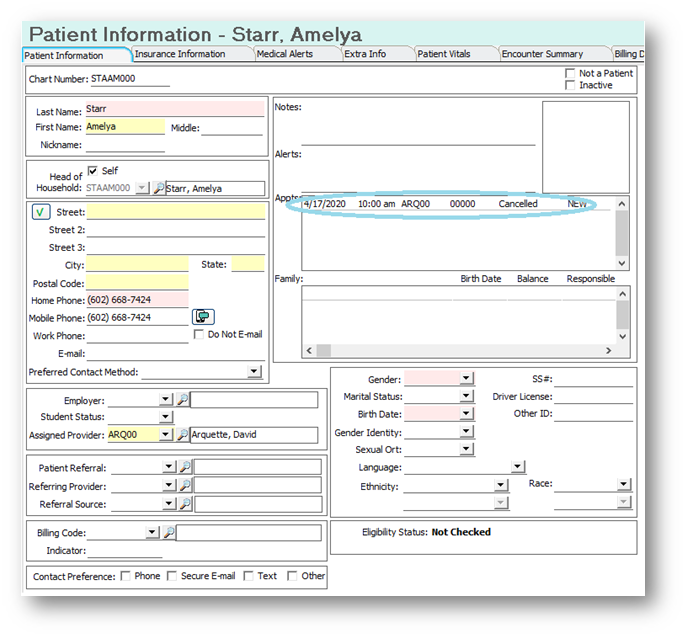
Cancelling the appointment will case a message to populate in the patient demographics record after the appointment is deleted from the Scheduler:
Or Missed the appointment will simply change the status to Missed in the calendar.
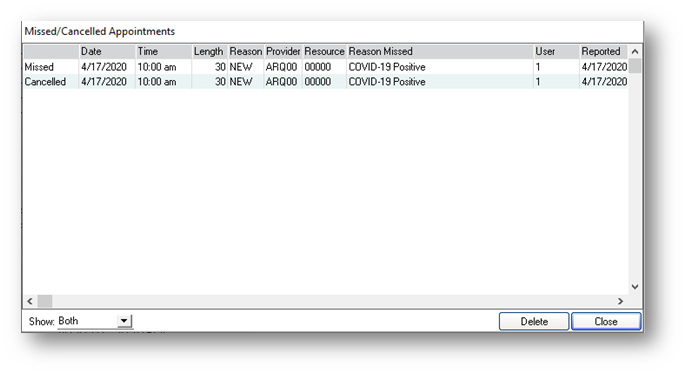
When going back to reschedule the patient, you will see the Missed/Cancelled Appointments box, showing you how many times and why this patient has missed appointments:
If you have questions regarding this functionality of TotalMD, please contact our support or training departments at 800-613-7597 Option 2 for Support or Option 3 for Training. If you would like a printable copy of this article, please contact Training at Option 3.