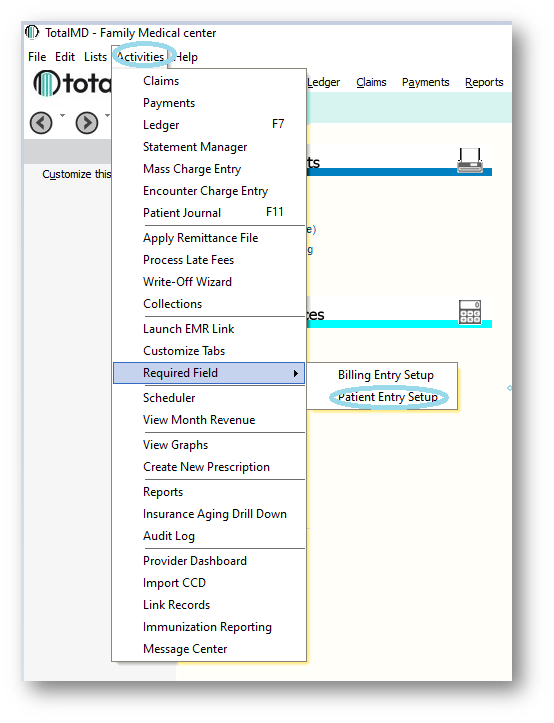
Creating Required Fields for patient data entry is very helpful. It will make sure that a patient has the necessary information entered early in the process, which helps with the billing process later on. To make recommended and required fields, you will go to Activities>Required Field>Patient Entry Setup:
You will them get the Setup Required/Suggested Fields screen:
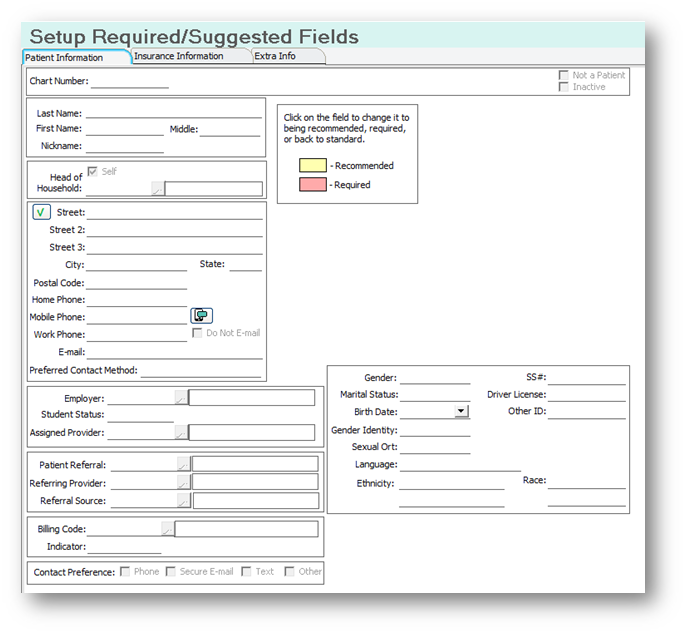
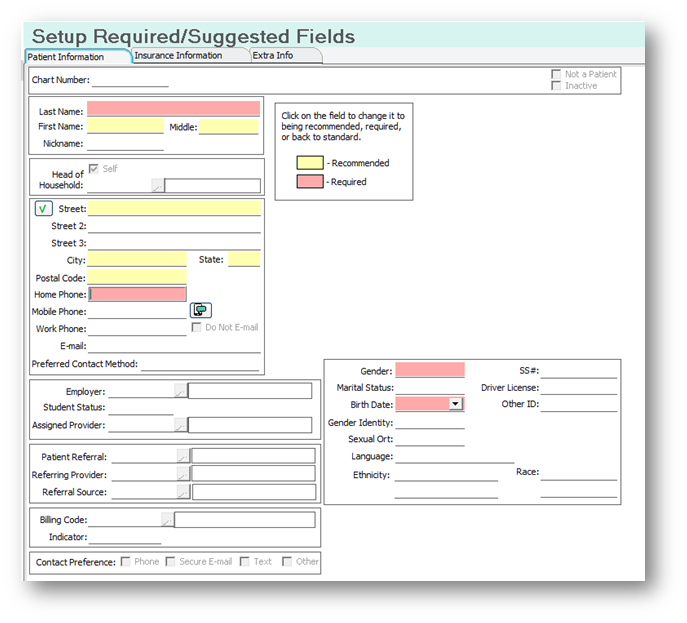
To add a Recommended field, click once in the space that you wish to be recommended. To add a Required field, double click into the field. It is important to note that if you make a field required, it will not allow a patient to be saved without it. If it is a field that may not be able to be filled, but it would be best to make it Recommended.
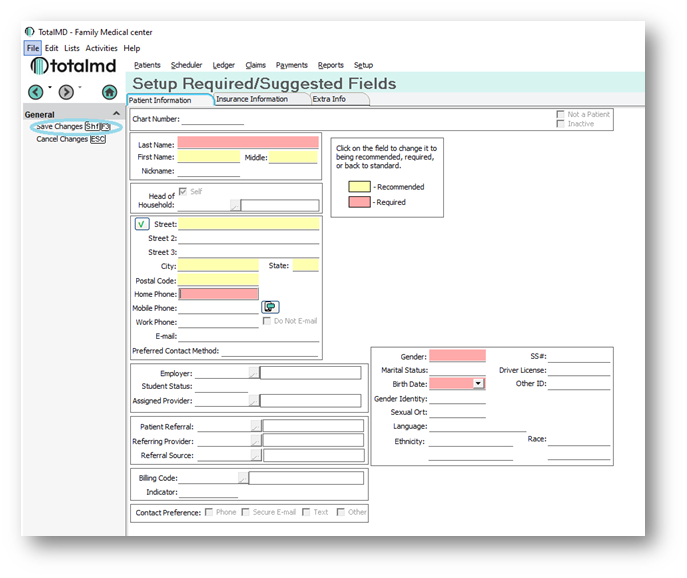
You will them click Save Changes or Shift F3:
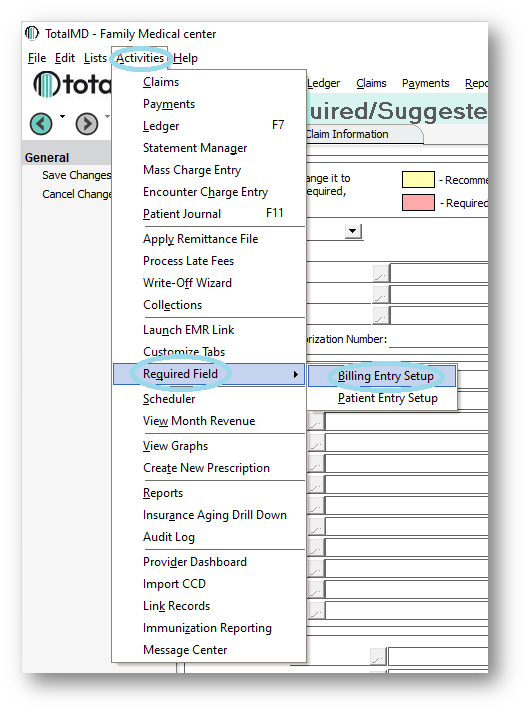
The other option to create Required Fields is for Billing Information:
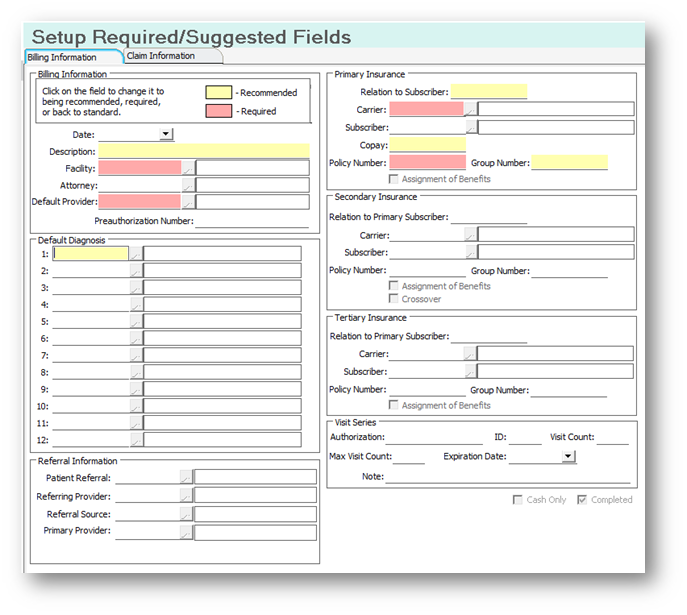
Just as you did with the Patient screen, you will single click for Recommended fields and double click for Required fields:
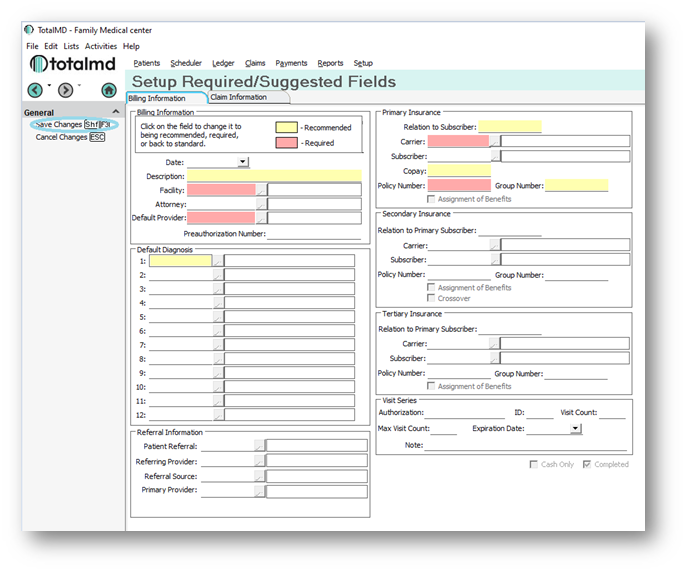
You will then Save Changes or Shift F3:
If you have questions regarding this functionality of TotalMD, please contact our support or training departments at 800-613-7597 Option 2 for Support or Option 3 for Training. If you would like a printable copy of this document, please contact the Training Department.