Appointment Book Pro has the capability to create templates that allow you to block off periods of time in your calendar where appointments cannot be placed or only specific types of appointments can be scheduled. Here is a link to a YouTube describing this process and you will find instructions below.
Getting Started
Within the Scheduler, click the Template Mode box in the lower right-hand corner:
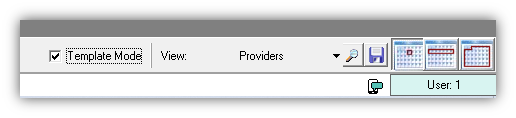
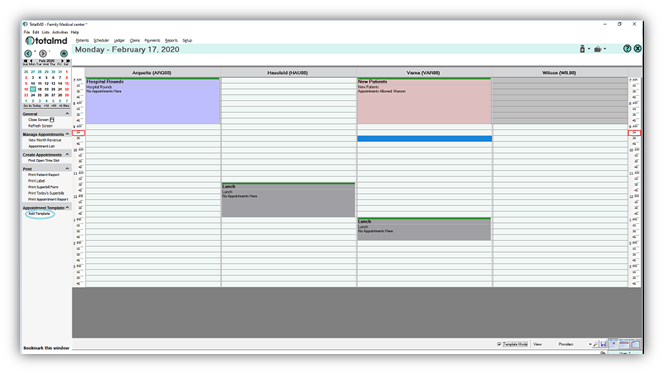
After the Template Mode box is checked, then choose to Add Template:
The new pop-up screen , Add Appointment Template, will look like this. The marked fields will be necessary to create a good template:
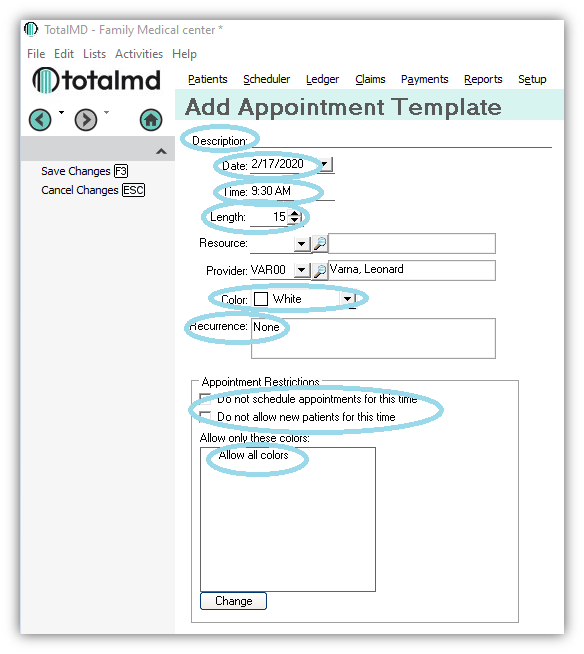
Description: Such as Lunch, Hospital Rounds or other definition as to the reason for the calendar restriction.
Date: This is the beginning date for the template.
Time: This is the beginning time for the template
Length: This is the amount of time in minutes that the template will block off in the schedule for this event.
Color: A color that will show in the calendar needs to be chosen here.
Recurrence: The length of the recurrence – such as for every day until a specific end date.
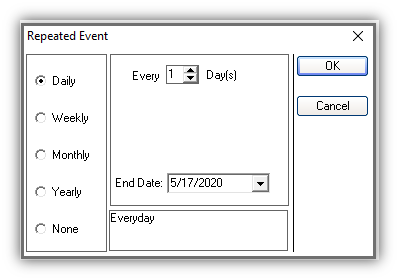
Appointment Restrictions:
Do not schedule appointments at this time will stop any appointments from being scheduled at this time unless it is specifically overridden. This verbiage will also appear on the calendar.
Do not allow new patients for this time will keep any new patients from being scheduled at this time.
Allow all colors – you can choose specific colors to be allowed during this time slot.
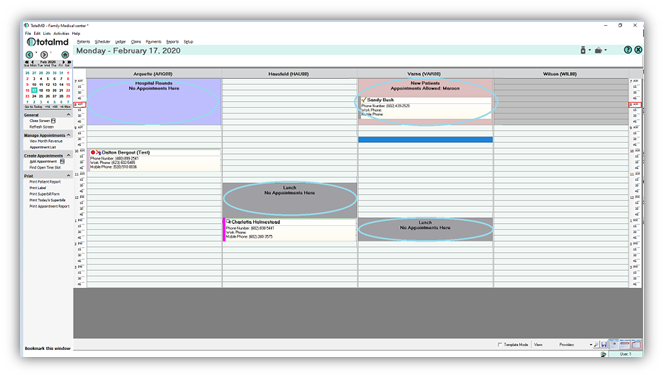
Below are two lunch hours and one other period of time that will not allow for appointments to be scheduled. The fourth slot only allows for maroon (new patient) appointments to be booked during that time.
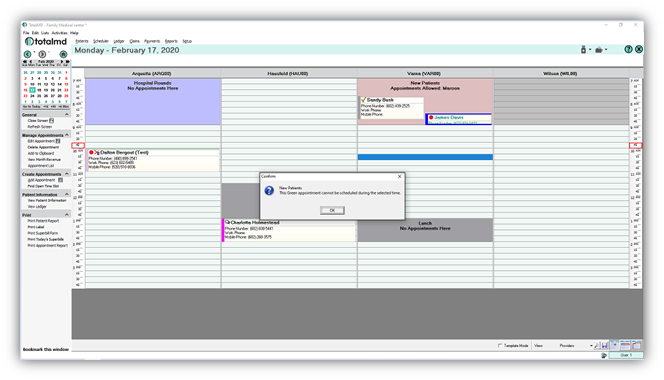
Once a restriction has been created, you will receive warnings when trying to schedule in these time blocks:
If you have questions regarding this functionality of TotalMD, please contact our support or training departments at 800-613-7597 Option 2 for Support or Option 3 for Training. If you would like a printable copy of this article, please contact Training at Option 3.